Showing posts with label website. Show all posts

Monday, October 12, 2015

Your Learning Toolbox (Fall 2015 edition)


Welcome new and returning students! Have you taken full advantage of the librarians and Library website? Consider the following whether you're a novice or an ol' research pro.

Cultivate your research & critical thinking skills

Use the "Ask Us" bulldog to meet or speak with, chat or email a member of the library faculty. Contact us when you're developing ideas for a research topic, deciding to use or forego a source, identifying useful search terms, or any other activity that makes use of information sources.

Use Research Guides (by subject and course)

Library faculty have crafted these guides to help you learn about research strategies, habits of mind, and anything else that can develop your scholarship, including recommended resources.

Get quick answers to questions with "How Do I?"

Use "How Do I?" when you want to know, "How do I renew my books? How do I read scholarly articles? How many items may I borrow at a time?"

Read a specific journal, magazine, or newspaper

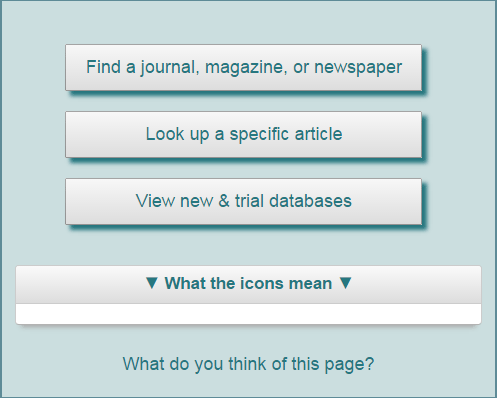
Sometimes your professor will recommend a specific journal, magazine, or newspaper. To see if the library has it, go to Article Databases & Online Resources and click the "Find a journal, magazine, or newspaper" button to search.

Look up a specific article

When all you have is a citation and you want full text, if the item being cited is an article go to Article Databases & Online Resources and click the "Look up a specific article" button to search.

Find a book

To locate a book or a book chapter, print or online, use the Library Catalog. To access online books, click on the hyperlink provided in the record, to find print books look at the book's location, call number, and availability. Click on the location (e.g. Reference, Periodicals, etc.) to view a map.

Find more books & media in Link+

When searching the Library Catalog, extend your search by clicking "Find in Link+" near the top of your screen. Link+ is like a quicker version of interlibrary loan for books and media only.

Save it to a list

When you search the Library Catalog and find a book, music score, CD, or DVD but don't have time for just yet, save it to a list. Select the item, click on "Save," and select the list to which you'll save it.

Request, Recall, or Place a Hold

Ever search for something in the Library Catalog and find it's not available? Request, recall, or place a hold by selecting the item, then click on "Request" and follow the directions provided.

Recommend a Library Purchase

Found an excellent book that's missing from the Library Catalog? Log into your library account and suggest that the Armacost Library purchase it and list the course(s) to which it relates.

Receive Alerts When the Library Acquires Something You Like

If you've made a purchase suggestion or if you simply want to know when Armacost Library acquires the latest book from your favorite author log into your Library account, run a search, then click "Save this search." To receive an email when a new title matching your search arrives, view your record, click on "Saved Searches," and select the "Mark for Email" box.

Do you have a favorite learning tool? Let me know by adding a comment below.

Thanks,
Paige

Paige Mann
Physical Sciences Librarian and Web Experiences Librarian

Thursday, April 30, 2015

Going Live on Monday: The New Article Databases & Online Resources

It's been around since January and as mentioned last month we're replacing the old Article Databases & Online Resources with the new Article Databases & Online Resources on Monday, May 4, 2015.

As you may recall, you'll need to update any bookmarks for

 (old) http://library.redlands.edu/databases
with
(new) http://library.redlands.edu/az.php

You may also recall that at the top of your screen you'll be able to filter databases by subject, type, as well as alphabetically.

When you filter by subject, rather than changing the resources listed in the lower part of your screen you'll instead be dropped into the "Find Articles" tab of the appropriate subject research guide. We intentionally designed it this way so that lists of resources are presented within the context of learning more about a subject. 

The ability to filter by source type is new and will limit the databases and online resources listed in the bottom half of your screen. We hope that it offers added functionality for our researchers, but it also raises questions for us as educators. How do we as library faculty curate such lists in a manner that enables independent inquiry without being prescriptive? Students who are used to research assignments that require them to report facts rather than explore their own unique curiosities alongside communities of knowledge may approach lists such as these and misunderstand how to use them. They may mistake information sources to be static objects ready for consumption rather than dynamic knowledge ready to be wrestled and interacted with; and view sources as fitting arbitrary categories determined by others rather than interpreted by the researchers themselves. 

We're also aware that researchers are sometimes confronted with the surprisingly confusing complexity of searching, filtering, evaluating, selecting, and locating sources. We are thus interested to see how researchers respond when their experiences don't quite match their expectations. For example, many databases listed under the type "scholarly" will also include non-scholarly content. Using the library website as a tool for learning, we'll modify this page over time to meet the educational needs of our users.

Returning to the new Article Databases & Online Resources, you'll find that you're still able to locate the full text of a specific item whether it at the journal, magazine, newspaper, or article level. There's a new area devoted to new and trial databases and I encourage you to see what's there periodically. When you click on the "View new & trial databases" button you'll also see a form where you can let us know how these resources might impact your teaching and learning. 


Speaking of feedback, in response to an observation that this page was "like walking into a huge big box store with no idea how to narrow" down one's choice of resources, we agreed and collapsed the legend that explained what the database icons represented, removed additional content on the page, and tried to reduce the visual clutter as a whole. We hope this is better, but please let us know your thoughts.

Overall, since January 2015 we've received a total of seven feedback forms (1 School of Education student, 1 administrator, 2 faculty, and 3 School of Business students). Some of the feedback was positive, others offered constructive suggestions. Where possible we've tried to incorporate your suggestions, but even when we can't implement your ideas immediately we still take your suggestions into consideration as it informs our work in general on the website. Thank you to the seven for their thoughtful comments. We invite you and everyone to continue to share your thoughts and experiences with by clicking on "What do you think of this page?" or by writing in the comments below.

Monday, March 23, 2015

New Article Databases & Online Resources Page

Have you looked at the new Article Databases & Online Resources page? It's got everything from the old page, plus a few new options.

(click the image above for a better view)
  • View all databases on a single page from A to Z *NEW*
  • Filter databases by subject
  • Filter databases by type (of resources included in the database) *NEW*

  • Filter databases by alphabet
  • Search by database title or description *NEW*  We decided to remove this feature since it appeared to confuse our patrons. It's limited in that it will only search databases by title and description, however search logs showed that people used it to try and find sources on their topic. [updated 4/30/2015]
  • Looking for a specific journals, magazines, and newspapers? Find it here
  • Looking for a specific article? Find it here
  • View new & trial databases *NEW*


Use it to find a few databases and online resources. We'll change over to the new page in a few months, but we want to know what you think. Are there too many database types? Are there too many databases listed under these source types? Hate the colors? Want us to include a picture of your weird Uncle Jeeter? Let us know.

One last thing, if you've bookmarked the old page, you'll need to update the old URL from

http://library.redlands.edu/databases
to
http://library.redlands.edu/az.php.

Questions? Write them in the comments or send them to library [at] redlands [dot] edu.

Wednesday, September 10, 2014

Your Learning Toolbox: Librarians and the Library Website


Welcome new and returning students! Have you taken full advantage of the librarians and Library website? Consider the following whether you're a novice or an ol' research pro.

Cultivate your research & critical thinking skills

Use the "Ask Us" bulldog to meet or speak with, chat or email a member of the library faculty. Contact us when you're forming a topic, figuring out what you'd like to say in your research assignment, questioning the authority of an author and publisher, revising your search strategies, or any other research activity.

Use Research Guides (by subject and course)

Library faculty have crafted these guides to help you learn about research strategies, habits of mind, and anything else that can develop your scholarship, including recommended resources.

Get quick answers to questions with "How Do I?"

Use "How Do I?" when you want to know, "How do I renew my books? How do I find scholarly articles? How many items may I borrow at a time?"

Follow Library News

Stay informed with Library News. Subscribe to the RSS feed or follow by email to learn about opportunities, exhibits, upcoming changes, and more at your library.

Find databases by resource type

When you visit Article Databases & Online Resources, you can find databases by subject, title, and type of resource. Use this to find newspapers, videos, audio, etc.

Read a specific journal, magazine, or newspaper

Sometimes your professor will recommend a specific journal. To see if the library has it, go to Article Databases & Online Resources and use the "Read a journal, magazine, or newspaper" box. Check if we have the specific year and issue. This isn't always as easy as one might expect so get help at any time.

1Look up a specific article

Sometimes all you'll have is a citation; does Armacost Library have the article you need? To find out, go to Article Databases & Online Resources and use "Look up a specific article." It's not always easy so seek help at any time.

Locate a book

To locate a book, you'll need the location and call number from the Library Catalog. New this year is the ability to view a book's location within the Library. Just click on the location (e.g. Reference, Periodicals, etc.) to view a map.

Save it to a list

When you search the Library Catalog and find a book, music score, CD, or DVD you like but don't have time for just yet, save it to a list. Select the item, click on "Save," and select the list to which you'll save it.

Request, Recall, or Place a Hold

Ever search for something in the Library Catalog and find it's not available? Request, recall, or place a hold by selecting the item, then click on "Request" and follow the directions provided.

Recommend a Library Purchase

Found an excellent book that's missing from the Library Catalog? Log into your library account and suggest that the Armacost Library purchase it and list the course(s) to which it relates.

Receive Alerts When the Library Acquires Something You Like

If you've made a purchase suggestion or if you simply want to know when Armacost Library acquires the latest book from your favorite author log into your Library account, run a search, then click "Save this search." To receive an email when a new title matching your search arrives, view your record, click on "Saved Searches," and select the "Mark for Email" box.

Do you have a favorite learning tool? Let me know by adding a comment below.

Thanks,
Paige

Paige Mann
Physical Sciences Librarian and Web Experiences Librarian

Thursday, July 24, 2014

Upcoming Changes to the Website & Downtimes

As part of our commitment to provide you with the best research and library experience, we're upgrading the framework upon which our website rests. (For you curious techies, we're moving to the Twitter Bootstrap framework.)


The Short


  • Around 9:30am on 8/11/2014, the Library website will be down for a few hours as we upgrade our website
  • Rather than being mobile-friendly, the upgraded website will be responsive to the width of your device's browser
  • You may need to update your bookmarks
  • The navigation menu will change
  • You'll see a slight change in the home page


The Long

On the morning of August 11, the Armacost Library website will be down for a few hours. Our new website will reflect several distinct changes. For starters, it will be responsive meaning it adjusts to the width of your browser, independent of the desktop or mobile device you're using to access the library website. It also means that you may need to update bookmarks to library web pages. For example, if you've bookmarked a URL that looks like

http://library.redlands.edu/content.php?pid=327607&sid=2716274 (before upgrade)

you'll need to change it to look like

http://library.redlands.edu/c.php?g=327607&p=2716274 (after upgrade).

We've redesigned a more usable website navigation that emphasizes the crux of what library users need and do at the library:  access information, learn, teach, and seek assistance. Here's a sneak peek of the main navigation


and a partial view of the expanded navigation menu.


Lastly, most of the home page will remain the same, but we've removed the Quick Links and Information For (different audiences) pages. In their place will be avenues to find quick answers to your questions.


If you have any questions, please contact us at (909) 748-8022 or email library@redlands.edu.

Friday, December 14, 2012

Librarians Need Sandboxes Too

As the Web Experience Librarian, I'd been itching to edit our interlibrary loan pages. Just this week I found time to get started on the interface that everyone uses to submit their interlibrary loan requests. Since this is the first time I've tinkered with the back end of ILLiad, our interlibrary loan program, I was curious to hear of an ILLiad "test web." It got me wondering and hoping that it was a kind of web sandbox, that is, a space where I could test changes to the website before these changes went live. It is! With the ILLiad manual giving only a brief mention of this and with my many unanswered questions, I jumped in and figured out how to make it work. So if you're a web librarian yourself and are interested in learning more, here's how I did it.

Create a Test Web in ILLiad


Create a sandbox where you can experiment with and test customizations to your ILLiad web interface.
  1. Identify your base URL for all of your ILLiad pages. (E.g. The base URL for http://redlands.illiad.oclc.org/illiad/logon.html and http://redlands.illiad.oclc.org/illiad/ArticleRequest.html is http://redlands.illiad.oclc.org/illiad/. What this base URL basically says is that on the Redlands ILLiad server, the web pages reside within a folder called “illiad.”
  2. Find this folder on your ILLiad server. Within the folder called “illiad,” create a subfolder called “testweb.”
  3. Within the folder called “testweb,” create a .txt file called webpath.txt. You may use Notepad or some other program to create a .txt file. If you already have a webpath.txt file, move it here.
  4. I’m not sure why this works, but within the webpath.txt file, you need to give computers directions to this file. Your directions will basically say, “Computer, this file is located inside the ‘testweb’ folder which is inside the ‘illiad’ folder which is inside my base URL. For example, webpath.txt could look like this:

    redlands.illiad.oclc.org/illiad/testweb/

  5. Now that computers know where to look, you need to give it things to look at. Copy and paste your web pages, CSS files, etc. to your “testweb” folder.
  6. Test that you’ve done everything right by looking for these files in your browser. For example, visit http://redlands.illiad.oclc.org/illiad/testweb/ArticleRequest.html. Test Web pages should closely mimic live ILLiad web pages, but may not be appear identical.

Friday, March 09, 2012

A Glimpse of the Future

Toward the end of April, we'll be launching a library catalog ripe with change. We're so excited, we thought you'd like a sneak peak. Take a look and tell us what you think. New features include book cover displays, the ability to create reading lists, rate items, find similar items, and more.

Stay tuned for more!